
This blog provides a tutorial for resizing (upwards) a partition on a headless VirtualBox Ubuntu Linux box. The task is accomplished in a few steps.
- Clone the disk drive into VHD format
- Increase the disk size of the clone
- Attached the newly cloned drive into the VM
- Increase the partition inside the VM
Ok so let's get started and see what we've got and where we need to get to.
$ VBoxManage list runningvms
"badzilla-d8" {86af2c61-3b68-47c5-a71e-8f45ac196cbe}
"Plex Media Server" {5efa7e7b-ae92-45a9-8244-bae451b53c0a}
Clone the disk drive into VHD format
We have to clone for two reasons. Firstly when I created the disk in the first place, I created it as a fixed 10GB and it needs to be dynamic, and secondly only .VDI or .VHD format drives can be grown. Let's get our disk details.
Now we know the name of our disk we can clone
Now let's see what we have
You can now see the two disk drives - the vmdk and the vhd format drives.
$ VBoxManage showvminfo "Plex Media Server" | grep -i disk
Boot Device (3): HardDisk
SATA (0, 0): /home/nigel/VirtualBox VMs/Plex Media Server/Plex Media Server-disk001.vmdk (UUID: 0956c89c-b496-4b2e-985f-2f2d484f6e3a)
$ sudo VBoxManage clonehd --format vhd "/home/nigel/VirtualBox VMs/Plex Media Server/Plex Media Server-disk001.vmdk" "/home/nigel/VirtualBox VMs/Plex Media Server/Plex Media Server-disk001.vhd"
[sudo] password for nigel:
0%...10%...20%...30%...40%...50%...60%...70%...80%...90%...100%
Clone medium created in format 'vhd'. UUID: e4770417-731a-466c-9124-d1c97625cf7b
$ ls -lash "/home/nigel/VirtualBox VMs/Plex Media Server/Plex Media Server-disk001.vmdk" "/home/nigel/VirtualBox VMs/Plex Media Server/Plex Media Server-disk001.vhd"
6.1G -rw------- 1 root  root  6.1G Sep 29 12:24 /home/nigel/VirtualBox VMs/Plex Media Server/Plex Media Server-disk001.vhd
6.0G -rw------- 1 nigel nigel 6.0G Sep 29 12:42 /home/nigel/VirtualBox VMs/Plex Media Server/Plex Media Server-disk001.vmdk
Increase the Disk Size of the VHD Clone
Now we can resize the disk to the required 30GB
$ sudo VBoxManage modifymedium '/home/nigel/VirtualBox VMs/Plex Media Server/Plex Media Server-disk001.vhd' --resize 30000
[sudo] password for nigel:
0%...10%...20%...30%...40%...50%...60%...70%...80%...90%...100%
Attached the newly cloned drive into the VM
Better power off the original VM. In fact I should have done this earlier. Oops.
Now we can switchero the disks around with the following command.
Did it work?
Looks encouraging so we'll start it up
and login in and check the running processes..
$ VBoxManage controlvm "Plex Media Server" poweroff
$ VBoxManage storageattach 'Plex Media Server' \
> --storagectl "SATA" \
> --device 0 \
> --port 0 \
> --type hdd \
> --medium  '/home/nigel/VirtualBox VMs/Plex Media Server/Plex Media Server-disk001.vhd'
$ VBoxManage showvminfo "Plex Media Server" | grep -i disk
Boot Device (3): HardDisk
SATA (0, 0): /home/nigel/VirtualBox VMs/Plex Media Server/Plex Media Server-disk001.vhd (UUID: e4770417-731a-466c-9124-d1c97625cf7b)
$ nohup VBoxHeadless --startvm "Plex Media Server" &
$ ssh nigel@192.168.0.203
nigel@192.168.0.203's password:
$ ps -ef | grep -i plex
plex       976     1  0 15:18 ?        00:00:00 /bin/sh -c LD_LIBRARY_PATH=/usr/lib/plexmediaserver "/usr/lib/plexmediaserver/Plex Media Server"
plex       982   976  4 15:18 ?        00:00:03 /usr/lib/plexmediaserver/Plex Media Server
plex      1116   982 13 15:18 ?        00:00:08 Plex Plug-in [com.plexapp.system] /usr/lib/plexmediaserver/Resources/Plug-ins-c40bba82e/Framework.bundle/Contents/Resources/Versions/2/Python/bootstrap.py --server-version 1.11.3.4803-c40bba82e /usr/lib/plexmediaserver/Resources/Plug-ins-c40bba82e/System.bundle
plex      1164   982  1 15:18 ?        00:00:00 /usr/lib/plexmediaserver/Plex DLNA Server
plex      1166   982  0 15:18 ?        00:00:00 /usr/lib/plexmediaserver/Plex Tuner Service /usr/lib/plexmediaserver/Resources/Tuner/Private /usr/lib/plexmediaserver/Resources/Tuner/Shared 1.11.3.4803-c40bba82e 32600 /waitmutex
plex      1213   982  8 15:18 ?        00:00:04 Plex Plug-in [com.plexapp.agents.imdb] /usr/lib/plexmediaserver/Resources/Plug-ins-c40bba82e/Framework.bundle/Contents/Resources/Versions/2/Python/bootstrap.py --server-version 1.11.3.4803-c40bba82e /usr/lib/plexmediaserver/Resources/Plug-ins-c40bba82e/PlexMovie.bundle
nigel     1354  1325  0 15:19 pts/0    00:00:00 grep --color=auto -i plex
Increase the Partition Size Inside the VM
If we look at the file system storage space it is reporting our system drive is at 100% capacity. We'd expect that - we need to extend it to use our new space.
Now lets see what the situation is per partition
Now let's see where our free space is
That makes life a little difficult because there is a swap partition of 4GB immediately after our Linux 6GB. We are going to have to delete the swap, recreate it between 26GB -> 30GB and then grow our 6GB Linux partition to 26GB. Whilst this would normally be extremely dangerous, the good news is if we make a fatal mistake, we can start the process over since we still have the original vmdk drive. So let's go for it!
Firstly we delete the swap space and the extended partition
Now we are going to delete the Linux partition. What? Well deleting the partition won't delete the data providing we recreate our new partition from the very same sector on the disk.
Now recreate the partition only bigger!
Next we recreate the extended partition with the remaining space and a new logical partition which will ultimately be the Linux Swap area
Now change the last partition type to Linux Swap
And finally write the partition table
So we need to reboot for our changes to take effect
When we log in there is good and bad news: the filesystem isn't recognising the new size but fdisk does.
and
Our final activity to make the additional space available for us is to use the resize2fs command:
And now we have it:
$ df -k | grep sda1
/dev/sda1                   6061632    5724660       6016 100% /
$ sudo fdisk /dev/sda

Welcome to fdisk (util-linux 2.27.1).
Changes will remain in memory only, until you decide to write them.
Be careful before using the write command.


Command (m for help): p
Disk /dev/sda: 29.3 GiB, 31457280000 bytes, 61440000 sectors
Units: sectors of 1 * 512 = 512 bytes
Sector size (logical/physical): 512 bytes / 512 bytes
I/O size (minimum/optimal): 512 bytes / 512 bytes
Disklabel type: dos
Disk identifier: 0x0660013b

Device     Boot    Start      End  Sectors Size Id Type
/dev/sda1  *        2048 12584959 12582912   6G 83 Linux
/dev/sda2       12587006 20969471  8382466   4G  5 Extended
/dev/sda5       12587008 20969471  8382464   4G 82 Linux swap / Solaris
Command (m for help): F
Unpartitioned space /dev/sda: 19.3 GiB, 20720910336 bytes, 40470528 sectors
Units: sectors of 1 * 512 = 512 bytes
Sector size (logical/physical): 512 bytes / 512 bytes

   Start      End  Sectors  Size
20969472 61439999 40470528 19.3G
Firstly we delete the swap space and the extended partition
Command (m for help): d
Partition number (1,2,5, default 5): 5

Partition 5 has been deleted.

Command (m for help): d
Partition number (1,2, default 2): 2

Partition 2 has been deleted.
Command (m for help): d
Selected partition 1
Partition 1 has been deleted.

Command (m for help): F
Unpartitioned space /dev/sda: 29.3 GiB, 31456231424 bytes, 61437952 sectors
Units: sectors of 1 * 512 = 512 bytes
Sector size (logical/physical): 512 bytes / 512 bytes

Start      End  Sectors  Size
 2048 61439999 61437952 29.3G
Command (m for help): n
Partition type
   p   primary (0 primary, 0 extended, 4 free)
   e   extended (container for logical partitions)
Select (default p): p
Partition number (1-4, default 1):
First sector (2048-61439999, default 2048):
Last sector, +sectors or +size{K,M,G,T,P} (2048-61439999, default 61439999): 53055486

Created a new partition 1 of type 'Linux' and of size 25.3 GiB.
Command (m for help): n
Partition type
   p   primary (1 primary, 0 extended, 3 free)
   e   extended (container for logical partitions)
Select (default p): e
Partition number (2-4, default 2): 2
First sector (53055487-61439999, default 53055488):
Last sector, +sectors or +size{K,M,G,T,P} (53055488-61439999, default 61439999):

Created a new partition 2 of type 'Extended' and of size 4 GiB.

Command (m for help): n
All space for primary partitions is in use.
Adding logical partition 5
First sector (53057536-61439999, default 53057536):
Last sector, +sectors or +size{K,M,G,T,P} (53057536-61439999, default 61439999):

Created a new partition 5 of type 'Linux' and of size 4 GiB.
Command (m for help): t
Partition number (1,2,5, default 5):
Partition type (type L to list all types): 82

Changed type of partition 'Linux' to 'Linux swap / Solaris'.
Command (m for help): w
The partition table has been altered.
Calling ioctl() to re-read partition table.
Re-reading the partition table failed.: Device or resource busy

The kernel still uses the old table. The new table will be used at the next reboot or after you run partprobe(8) or kpartx(8).
$ sudo su
[sudo] password for nigel:
root@plex-media-server:/home/nigel# init 6
$ df -k | grep sda
/dev/sda1                   6061632    5667620      63056  99% /
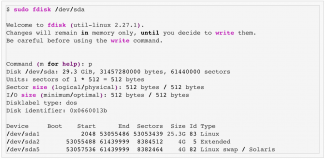
$ sudo fdisk /dev/sda

Welcome to fdisk (util-linux 2.27.1).
Changes will remain in memory only, until you decide to write them.
Be careful before using the write command.


Command (m for help): p
Disk /dev/sda: 29.3 GiB, 31457280000 bytes, 61440000 sectors
Units: sectors of 1 * 512 = 512 bytes
Sector size (logical/physical): 512 bytes / 512 bytes
I/O size (minimum/optimal): 512 bytes / 512 bytes
Disklabel type: dos
Disk identifier: 0x0660013b

Device     Boot    Start      End  Sectors  Size Id Type
/dev/sda1           2048 53055486 53053439 25.3G 83 Linux
/dev/sda2       53055488 61439999  8384512    4G  5 Extended
/dev/sda5       53057536 61439999  8382464    4G 82 Linux swap / Solaris
$ sudo resize2fs /dev/sda1
resize2fs 1.42.13 (17-May-2015)
Filesystem at /dev/sda1 is mounted on /; on-line resizing required
old_desc_blocks = 1, new_desc_blocks = 2
The filesystem on /dev/sda1 is now 6631679 (4k) blocks long.
$ df -k | grep sda
/dev/sda1                  25978144    5672208   19165592  23% /
Cleaning-up Activities
Since we deleted the swap partition, and moved it, we need to create the actual swap with the following command
In addition, we could either delete the original vmdk disk or archive it somewhere to get 6GB space back on the parent machine.
$ sudo mkswap /dev/sda5
blog terms
Hardware
Linux
VirtualBox