
My previous blog Running PHP on Amazon Lambda with Serverless showed how to create a simple PHP Lambda function using the serverless-php repo. Now we need to extend that to actually serve webpages. This tutorial goes through the steps of creating a small website with a simple PHP page served to the end user. By default AWS Lambda returns JSON objects to the browser - so we will need to fix that as we go along.
In my previous blog we created a simple Lambda Function that we called demo. The starting point of this tutorial is to go through all the steps we did last time but instead of using demo as the name, we will use webpages.
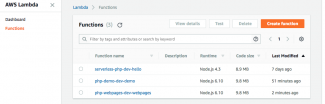
If you've correctly followed my previous blog instructions but substituted demo for webpages, and you've deployed correctly, you should see it listed in the AWS dashboard like mine above.
Ok let the fun begin. The JavaScript shim handler.js requires no changes.
The handler.php requires a small change. We are going to be passing escaped characters between PHP and JavaScript by JSON, so to ensure the unescaping is handled correctly in the JS, we need to add the JSON_HEX_QUOT parameter to the PHP json_encode() function. Below I've pasted a diff output between the original from serverless-php repo and Webpages so you can see my change.
Nigels-MacBook-Pro:serverless-php-webpages nigel$ diff handler.php ../serverless-php-demo/handler.php
26c26
< printf(json_encode($response, JSON_HEX_QUOT));
---
> printf(json_encode($response));
Next you need to change the WebpagesHandler class to return in the headers the text/html value, and in the body section you'll need a HTML payload to render. I've created a very simple page which will display a title and the text Yippee! when we've got it working :)
<?php

namespace Raines\Serverless;

class WebpagesHandler implements Handler
{
    /**
     * {@inheritdoc}
     */
    public function handle(array $event, Context $context)
    {
        $logger = $context->getLogger();
        $logger->notice('Got event', $event);

        return [
            'headers' => [
                'Content-Type' => 'text/html'
            ],
            'statusCode' => 200,
            'body' => '<html><!doctype html><head><link rel="shortcut icon" href="#"><title>Landing Page</title></head><body><h1>Landing Page</h1><p>Yippee!</p></body></html>',
        ];
    }
}
?>Nigels-MacBook-Pro:serverless-php-webpages nigel$ sls deploy
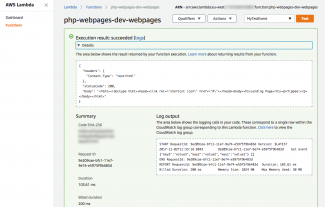
To run from the Lambda console, click on your function from the Functions list, then add a Test - I called mine MyTestEvent which passes three key/value pairs. Then click on Test. You will see output similar to my screenshot above.
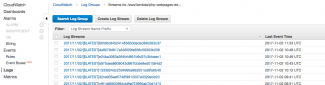
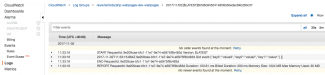
If you click on Logs you will be redirected in a new tab to Cloudwatch and you'll see a list of log streams similar to my experience (first screenshot above). Then click on the top most log and you'll see the console output for your most recent invocation. This is ideal should you have placed console.log() traces in your code - you will see the output here. You can also see the output to the PHP $logger->notice() call in WebpagesHandler.php
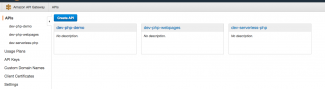
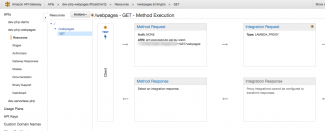
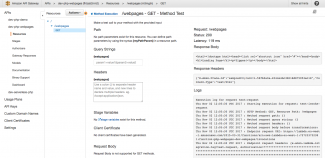
If you navigate to the Amazon API Gateway dashboard you should see your function listed (see mine in the first screenshot). Click on the webpages instance. Then click on GET under /webpages and you'll see the second screenshot. Now click on the TEST Lightning Bolt icon and the execution pane will be displayed. Scroll down and click TEST again. Your output should be similar to my third screenshot above. You should see a status 200 success like I do.
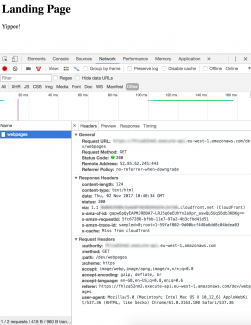
Of course you can also point a web browser to your unique URL although you won't get any logging information with this approach. It will however prove whether you have a broken layout!
It looks like it's worked!